Visual Companion: How to Set It Up for Your Family
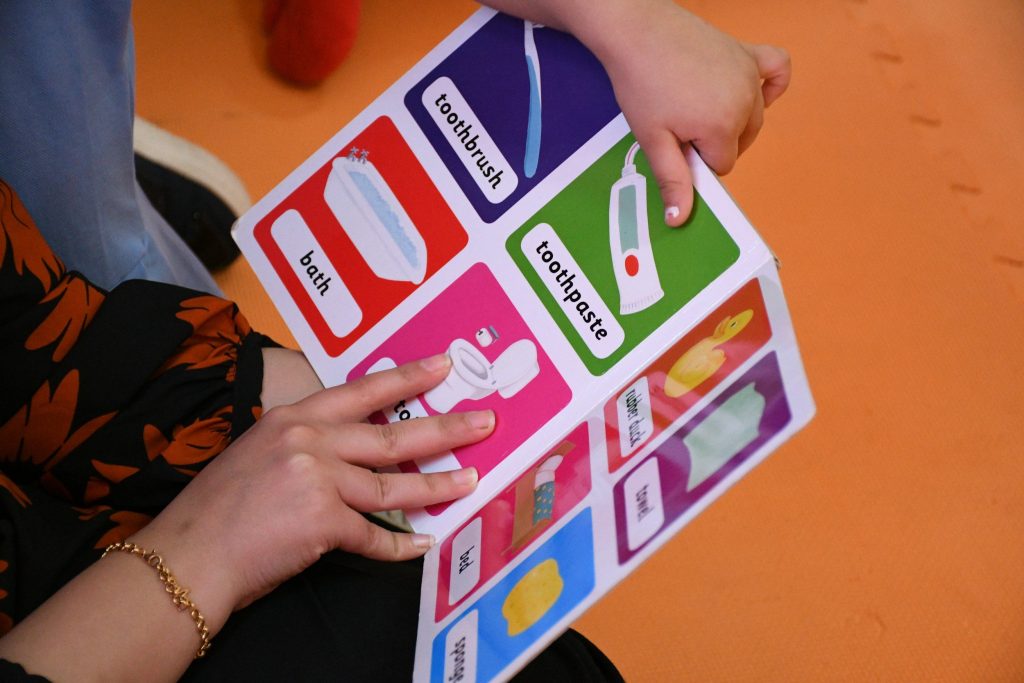
In my last article I wrote about why I built Visual Companion — a picture-first routine app for my son with no server, no login, and no subscription. The response convinced me to stop waiting: the code is now public, and the app is free for anyone to use. This piece is the practical half — how to actually get it onto your child’s device and build your first routine. No technical skills required. If you can take a photo and send a text, you can do all of this.
Getting It on the Device
There’s nothing to download from an app store. The app lives at one address:
https://visual-companion.pages.dev
The only rule that matters: use the right browser for your device.
-
iPhone or iPad: open the link in Safari. Tap the Share button (the square with the arrow), scroll down, tap Add to Home Screen, then Add.
-
Android: open the link in Chrome. It will offer to Install the app — accept it.
-
Computer: open it in Chrome or Edge and click the small install icon at the right end of the address bar.
A new icon appears, just like a regular app. From now on, always open it from that icon — not the browser. After that first load it works completely offline. Airplane mode, dead Wi-Fi, a cabin in the woods: it does not care.
One thing worth saying plainly, because it’s the whole reason I built this: nothing your family puts into this app ever leaves the device. There is no account, no cloud, no company holding your photos. Every photo, every routine, every voice recording stays on that iPad. That’s not a settings toggle — it’s how the thing is built.
Setting Up as the Guardian
Open the app and find Guardian mode. The first time in, it asks you to create a PIN. This isn’t bank security — it’s a gate to keep curious fingers out of the editing screens. Pick something you’ll remember.
Then build your first activity. Keep it small — brushing teeth is the classic for a reason:
-
Tap New activity and give it a name and a cover photo.
-
Add steps, one at a time. Each step is a photo plus a short line of text. Take the photos yourself, in your own bathroom, with your child’s actual toothbrush. Familiar beats perfect — a stock photo of a generic sink means nothing to a kid who knows exactly which cup is his.
-
If you want, record your own voice for a step. There’s a record button right in the editor. A parent’s voice saying “now rinse” carries more weight than any robot voice.
-
Assign the activity to days of the week, and it shows up automatically on the calendar.
That’s the entire skill set. Everything else in the app is a variation of those four moves.
How Your Child Uses It
Their side is deliberately simple. The home screen is a calendar. Tap today, tap the activity, and it walks through one photo at a time — big picture, short line of text, a speaker button that reads it aloud, and one big Done button. When they finish, there’s a gentle “All done!” and the activity gets a check mark for the day. No points, no streaks, no timer counting down. Nothing to lose, nothing to fail.
My first run with my Son worked great. I will continue testing the same.
The One Habit: Export a Backup
After you’ve built your routines, go to Guardian → Backup → Export. It saves a single file containing everything — every activity, photo, and audio clip. Put it somewhere safe: email it to yourself, drop it in your cloud drive, AirDrop it to another device.
That file is the insurance policy. New iPad? Import, and everything is back in two minutes. Device broken or icon deleted? Same. It’s also, honestly, the succession plan — the file you hand to whoever cares for your child after you. One file, readable on anything, owned by you.
Do it once after setup, and again whenever you’ve added something you’d hate to rebuild.
If Something Goes Wrong
Very little can. But the two questions I expect: if you delete the icon from the home screen, the data on that device goes with it — that’s what the backup is for. And if the read-aloud voice doesn’t speak, check the device isn’t in silent mode.
For the developers reading: the code is open source, MIT-licensed, at github.com/leogift80/visual-companion. Host your own copy anywhere that serves static files. The README covers it in one page.
The Point
Every setup step in this guide is designed to be done once. There is no account to maintain, no subscription to renew, no update to remember. Build the routines, export the backup, and let it disappear into your child’s day.
The best tools for our kids aren’t the ones with the most features. They’re the ones that are still working, unchanged, on the thousandth morning.